Quick Markdown Preview
Press Space. Read Markdown the way it was meant to look.
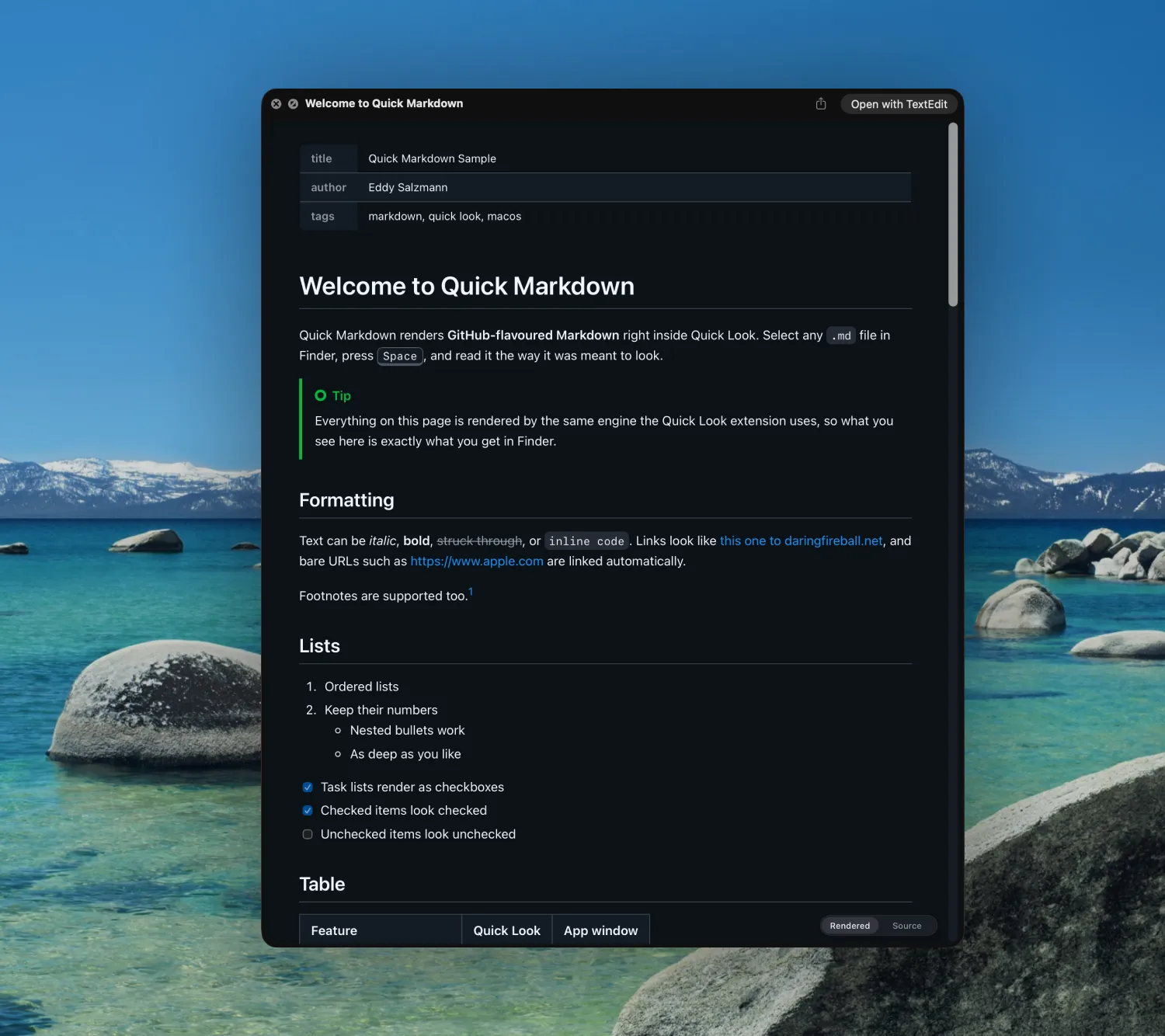
Everything Finder was missing
Quick Look, done right
Select any .md file and press Space. Headings, tables, task lists, footnotes and images render instantly, in light and dark mode.
GitHub-flavoured Markdown
Powered by the same engine GitHub uses. Tables, strikethrough, autolinks, task lists, footnotes and [!NOTE]-style alerts all work.
Syntax highlighting
Code blocks in over 30 languages are highlighted, with optional line numbers.
Rendered or Source
A small switch in the corner of every preview flips between the formatted view and the original text.
Front matter, understood
YAML and TOML front matter is shown as a tidy table instead of raw text, or hidden if you prefer.
Finder thumbnails
Markdown files get real thumbnails in Finder, so you can tell documents apart at a glance.
Your look
Appearance, font, size and content width are yours to choose. Changes apply to the next preview immediately.
Private by design
Everything renders on your Mac. No network access, no accounts, no analytics.
Set up in 30 seconds
- 1
Install Quick Markdown from the Mac App Store and open it once.
- 2
If the welcome window doesn’t confirm the extension is active, click Open Extension Settings and switch on Quick Markdown in the Quick Look list.
- macOS 15 and later: System Settings › General › Login Items & Extensions › Quick Look
- macOS 13–14: System Settings › Privacy & Security › Extensions › Quick Look
- macOS 10.15–12: System Preferences › Extensions › Quick Look
- 3
Select any
.mdfile in Finder and press Space.
The app doesn’t need to stay open. The extension runs on its own; the app is only for settings.
Support
The preview still shows plain text.
Make sure the extension is switched on (see Set up). If it is, quit and reopen Finder, or log out and back in. If another Markdown Quick Look app is installed, switch it off, as macOS uses only one.
Images in my document don’t show.
Quick Look extensions may only read the file being previewed. Images next to the document appear when macOS allows it; images from the internet are never loaded, to protect your privacy. Open the file in the Quick Markdown app to see all local images.
How do I change the look?
Open Quick Markdown and choose Quick Markdown › Settings…. Appearance, font, size, width, syntax highlighting and more apply to the next preview immediately.
Where is the Source view?
Use the Rendered / Source switch in the bottom-right corner of the preview.
Something else? Email [email protected] with your macOS version and, if possible, a sample file. Bug reports and feature requests are welcome.
Privacy Policy
Effective 10 September 2026
Quick Markdown does not collect, store, or transmit any personal data. It has no analytics, no accounts, no network connection, and no third-party services.
Your files
The extension reads only the file you are previewing, and only while the preview is shown. File contents never leave your Mac. The app runs in the macOS App Sandbox and can only open files you choose or preview.
Settings
Your display preferences are stored locally on your Mac in an app group container so the app and its extension share them. They are not synced or transmitted anywhere by Quick Markdown.
Third parties
Quick Markdown contains no advertising, tracking or analytics software and shares no data with anyone. Purchases are handled entirely by Apple through the Mac App Store under Apple’s Privacy Policy.
Changes and contact
If this policy ever changes, the updated version will be published on this page with a new effective date. Questions: [email protected].